

I recently updated all the PowerBI Report Servers to the January 2026 update. You can find the download link here and the feature summary here.

Picture Source
I first updated the lower environments and then prod, but since most of the reports were used only in production, I didn’t see the issue coming. So, the issue with this release was that crash dump files were generated in the logfiles (C:\Program Files\Microsoft Power BI Report Server\PBIRS\LogFiles).
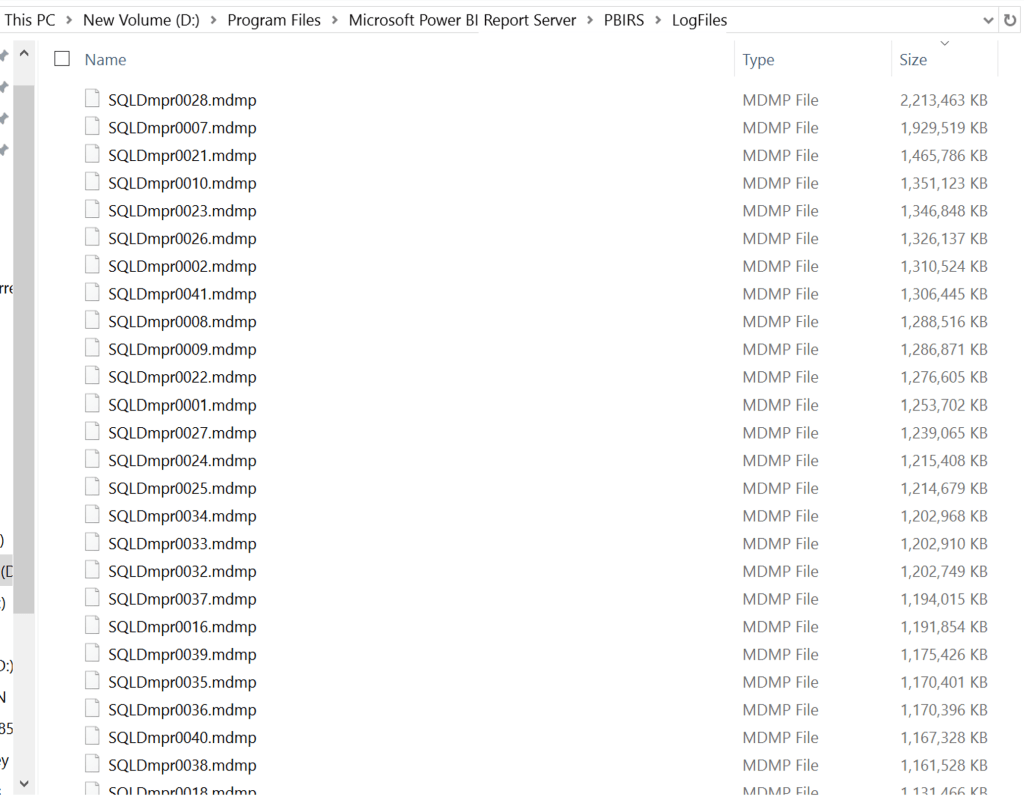
Excessive Crash Dump files generated in the logfile folder
Due to the Excessive Crash Dump files generated on two nodes of the cluster (two-node scale-out deployment), the D drive, where these logfiles are generated filled up the space very quickly. We deleted the files manually until we had a quick fix for the issue.
I had contacted Microsoft support for help on this issue. They suggested to update the configuration file (C:\Program Files\Microsoft Power BI Report Server\PBIRS\LogFiles\ASEngine\msmdsrv)for the flag from <CreateAndSendCrashReports>1</CreateAndSendCrashReports> to <CreateAndSendCrashReports>0</CreateAndSendCrashReports> to stop creating these dumps. After making this change, I restarted the PowerBI Report Services. I made this change to both the nodes.
I didn’t see any crash dumps generated after making the change.

After that, Microsoft also reported the issue, and they released the fix mentioned on the Microsoft website here. You can download the February 25, 2026 release from here.
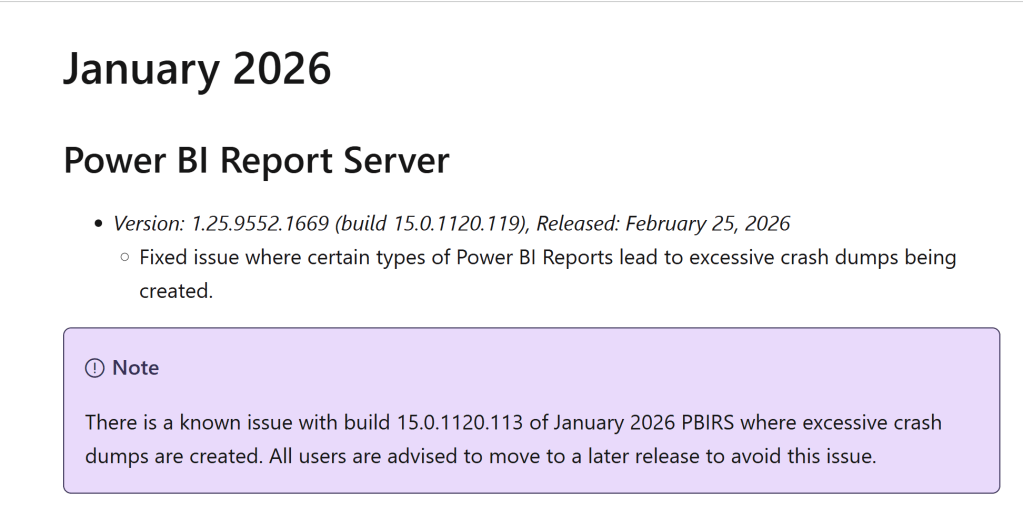
Before updating your PowerBI Report Servers, make sure to follow the steps below. All the steps below are needed in case you need to roll back the change.
- Take a snapshot of the Server if it is a VM
- Take a backup copy of rsreportserver.config file located C:\Program Files\Microsoft Power BI Report Server\PBIRS\ReportServer folder
- Take a full backup of ReportServer and ReportServerTempDB database (Both database backups are a must if you need to revert back the update)
- Take the backup of the encryption key and store the secret in a safe location for later use. I usually save it in Secret Server.
Summary:
Roll back plan is really important during situations like this. I had to update the update documentation with all the steps I mentioned above just in case if we had issues with the updates and we need to have a fix immediately. In this case, Microsoft provided the quick fix but what if it takes time for the fix to be released and the only way to roll back? Without the proper backups, rollback will be impossible.
That’s all from me for today. Thank you for reading!
 Deepthi Goguri's SQL Server Blog