
When trying to connect to a SQL database within Power BI Desktop January 2026 met with certificate chain trust error when trying to connect to the SQL Database using database DNS. Below is the error:
Microsoft SQL: A connection was successfully established with the server, but then an error occurred during the login process. (provider: SSL Provider, error: 0 – The certificate chain was issued by an authority that is not trusted.)”
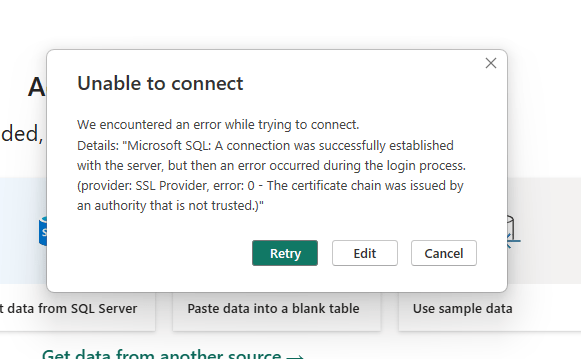
Recently, after we applied the January 2026 Power BI Report Server update, we received several complaints from our developers building reports that they are having issues connecting to on-premises SQL Servers. After digging into the issue, I found that Power BI automatically attempts to encrypt connections (even when SQL Server is set to “Force Encryption=NO”, which is the option we had on the SQL Servers). We use CNAME entries for each database to have its own DNS name entry. For this reason, we didn’t create the SSL certificate. We can only chose one certificate per instance of SQL Server and in the case of having multiple database DNS entries, this option is not possible. Because of not having the certificate assigned to SQL Server, connection isn’t trusted on client machines where the Power BI Desktop is hosted. so the connection fails.
There is also no option shown in the Power BI Desktop advanced options to check the box for Trust Server Certificate. The kind we have in SQL Server Management Studio.
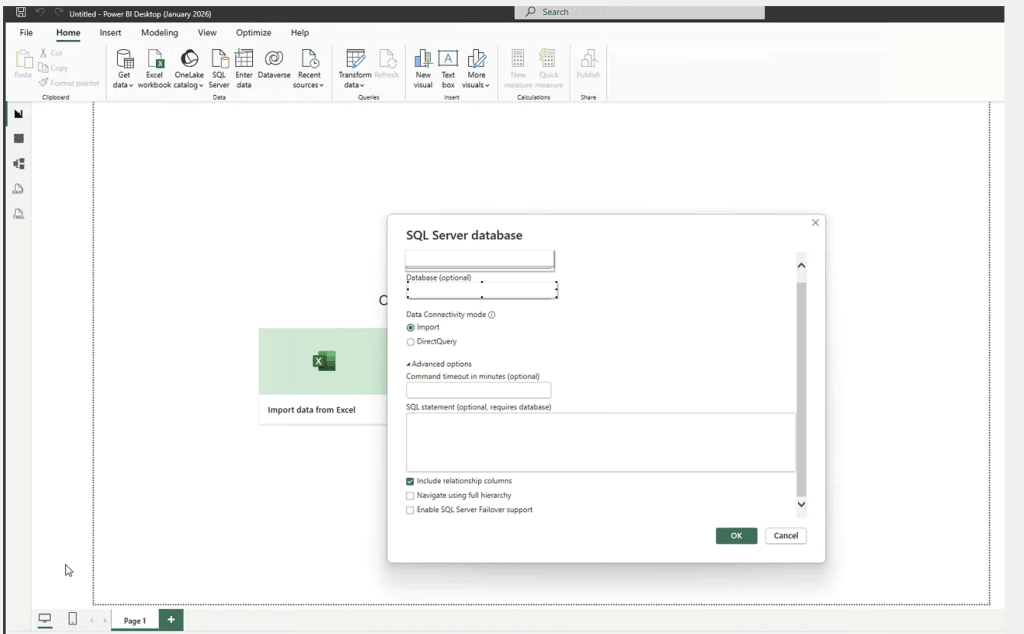
So, how do you resolve this when you can’t install the certificate on the SQL Server? There is a way we can resolve this. We can add the environment variable on all the client windows machines using the PowerBI Desktop.
I have found these steps on Microsoft website (please see the resources section down below) but I didn’t understand why we were seeing these issues all of a sudden after the January update. I contacted Microsoft support and they mentioned it that with Jan 2026 update, the connections are enforcing strict certificate validation. So, here I am following their suggestion.
Steps
Connect to the Windows machine. In the search bar at the bottom > search settings > system > about > Advanced system settings > Environmental variables

Click on the New under the Environment Variables > create new variable with name PBI_SQL_TRUSTED_SERVERS. In the variable value (usually, the value shown in your datasource of the direct query report)- give the FQDN (example – mysvr.microsoft.com) or Servernames seperated by commas (example – contososql, contososql2) or Machinename with the * at the end if you want to include all the SQL Server instances on the machine (example – contososql* which includes contososqlinstance1, contososqlinstance2 and so on). Click OK.
Repeat the same by creating the same variable with value in the System Variables too. Click OK.

Restart the Power BI Report Server and now try to connect to the report and you should be able to open it.
Set this environment variable on Windows machines using the powershell script to make the process simple.
In Windows PowerShell, type this in the console and hit enter. [System.Environment]::SetEnvironmentVariable(‘PBI_SQL_TRUSTED_SERVERS’,’*.contoso.com’, ‘User’)
Restart Power BI Desktop
This will help connect normally. Works on all your machines including Jan 2026 versions.
Test this on one machine first, then you can deploy via Group Policy for all affected machines. With the January 2026 update, Power BI enforces stricter certificate validation. When using SQL Server 2022 with Server DNS or AG listeners, the server certificate must match the DNS name exactly. Earlier versions allowed this without strict checks, so this is a security change. If the database DNS are used, adding the environmental variable is the best option.
Resources:
https://learn.microsoft.com/en-us/power-query/connectors/sql-server#limitations-and-considerations
Thank you for reading!
 Deepthi Goguri's SQL Server Blog
Very Insightful!
LikeLiked by 1 person
Hi Deepthi,thanks for sharing!2 Questions from my side:1. I am surprised that this is a new thing in PBIRS Januar 2026? I had set the PBI_SQL_TRUSTED_SERVERS last year already. Apparently it came with the May 2024 update.
2. I don’t follow completely your certificate issue. I use the subject alternative name field in the Certificate to cover all DNS aliases we set. I have written about it briefly on https://www.martinguth.de/power-bi/power-bi-report-server-managing-multi-homed-urls-in-an-availability-group-setup/ . However we haven’t done it correctly on all servers *sigh* therefore I am also using the environment variable PBI_SQL_TRUSTED_SERVERS 😉.
LikeLiked by 1 person
Hello Martin, I exactly know what you are pointing to. I have written a blog post about 2024 update as well but this was the environmental variables that needs to be added to the Power BI report services server as per the Microsoft support team at the time. So, I just updated those servers and not the user desktop machines. You can find my blog post about it here – https://dbanuggets.com/2024/07/31/may-2024-power-bi-report-server-update-fix-we-couldnt-connect-to-the-analysis-services-server/
Regarding your second question, I am not really sure if everyone is seeing this issue but we have seen developers complaining the connections are failing to any of the sql servers. So, I contacted the Microsoft support to resolve the issue by adding those environmental variables to each of the machines where the PowerBI desktop apps are hosted. We don’t want to create any certificates on the sql server side because we use database dns and sql server can only have one certificate selected in the configuration settings. In the environmental variables, we included the wild card so each dns entry can be accepted and we enforced our developers to use only database dns and not server dns and of possible to use read only copy.
LikeLike