Migrating Traditional SQL Server Service Accounts to Group Managed Service Accounts(gMSA)- Part 2

This post is about the Failover cluster Instances and SQL Servers with high availability groups enabled.

A Failover Cluster Instance (FCI) is a SQL Server high-availability solution where multiple servers share the same storage. If the active node fails, SQL Server automatically fails over to another node with minimal downtime.

You need to follow all the steps mentioned in the first blog post, which you can find here.

Steps to Change Service Account with FCI or Servers with HA to gMSA Service accounts

  1. In Failover Cluster Manager (or PowerShell): Get-ClusterGroup on open it
  2. Find the cluster group for your SQL instance: e.g. SQL Server (MSSQLSERVER).
  3. Note which node is OwnerNode (active).
  4. On the active node (the one currently owning the SQL FCI resources):
  5. Open SQL Server Configuration Manager.
  6. Right-click SQL Server (MSSQLSERVER) select Properties.
  7. Click Log On tab.
  8. Change Account Name to: domain\gms{func}{env}sql$, including the $ at the end of the account. NOTE: Include the $ at the end. That tells Windows it’s a gMSA.
  9. Repeat process for SQL Server Agent (MSSQLSERVER)
  10. NOTE: Do not enter a password, leave it blank. gMSA handles passwords automatically
  11. Restart SQL services
  12. Open the Cluster Manager > Right-click the SQL Server role > Stop Role
  13. Right click the FCI SQL Role again, select Start Role
  14. Open the SQL Sevrer Configuration Manager
  15. Verify the SQL Server and Agent services started successfully under the gMSA and the SQL instance comes online.
  16. Note: For the FCI, you must change the service account once in the active node server. The changes will be replicated over to the other nodes (active or not) automatically. That’s the magic of gMSA.

Failover Testing (Safe Procedure)

Once verified on one node, test failover to ensure the gMSA works cluster-wide.

  1. Open Failover Cluster Manager
  2. Right-click your SQL Server role (e.g. SQL Server (MSSQLSERVER))
  3. Click Move, then click Select Node…
  4. Choose the passive node.
  5. Watch the role come online on that node.
  6. Verify SQL services start automatically under the same gMSA on the new node. No manual intervention needed (that’s the gMSA magic).

If successful, fail back to the original node.

Validation Checks

  1. Open SQL Server Management Studio. You should be able to connect to SQL Server locally on the Server and remotely.
  2. Run SELECT servicename, service_account FROM sys.dm_server_services;
  3. Confirm both SQL and Agent show correctrly
  4. Open Event Viewer
  5. Click Application log
  6. Search for for Event ID 17162 (SQL Server) startup success.
  7. Confirm there were no login or service control errors.
  8. Test logins, linked servers, backups, and Agent jobs.

Rollback Plan

Should testing fail, or services not come back online:

  1. Request Server engineering team to revert the SPN’s back to the previous service account from the gMSA account.
  2. Change the gMSA SQL Server and SQL Server agent service accounts back to the regular service account.
  3. Restart the SQL Services.

References: Manage group Managed Service Accounts

Thank you for reading!

Migrating Traditional SQL Server Service Accounts to Group Managed Service Accounts(gMSA)- Part 1

I recently started working on a project migrating all the SQL Server regular service accounts to Group Managed Service Accounts (gMSA) for both SQL Server and SQL Server Agent accounts.

A Service Account is something that applications like the SQL Server, IIS, or scheduled tasks need to run under using Microsoft Active Directory. These are the regular domain user accounts, where the passwords needs to be manually managed and rotated. As these needs to be manually updated, downtime to the services are required if the password needs to be changed. Not only that but syncing these passwords across multiple servers can be an issue. This problem is resolved by using the Standalone Managed Service Account as Windows can manage the password automatically.

What is a Standalone Managed Service Account (sMSA) and a Group Managed Service Account?

Both the sMSA (Introduced in Windows Server 2008 R2) and gMSA (Introduced in Windows Server 2012) are managed domain account that provides automatic password management, simplified service principal name (SPN) management, and the ability to delegate the management to other administrators. The main difference is that an sMSA account can run the service on a single Server, whereas a gMSA account can manage a single account across multiple Servers.

Group Managed Service Account (gMSA)

A gMSA works just like the sMSA but can be used by multiple Servers. The password is automatically managed and updated every 30 days by default. These are best for password management and best for the server farms, web farms, distributed applications or load-balancing applications. Passwords are managed by Microsoft Key Distribution Service (KDS) where the domain controller rotates the account password and is securely used by the authorized servers. The password is very secure as no one can see it and not visible to anyone. Easy for the auditing as well as these passwords will be automatically updated without any manual work.

Minimum requirement to use gMSA

  1. Can only be used on Windows Server 2012 or later
  2. Active Directory Domain Services
  3. Creation of a KDS root key for password generation

Preferred Naming convention for the gMSA accounts for SQL Server

Note: gMSA Service Account can’t exceed 15 characters including the $ symbol which needs to be included at the end of every gMSA account.

Server service account: Domain\ + gms + {func} + {env} + sql 

Server Agent service account: Domain\ + gms +{func} + {env} + sqlagt

where

{func} can be the primary function of the Server. This can be a 3 character limit.

{env} can be the 3 character enviroment like DEV, TST, QA, PRD

Note: If you wanted to implement the gMSA Service accounts for new SQL Servers, these Windows Servers first need to be built before requesting the gMSA Service accounts to your Server Engineers. They will be creating these gMSA Service Accounts for you.

What SQL Servers can use gMSA?

SQL Server standalone or SQL Servers on multiple nodes in a cluster or Always on Availability Groups can use gMSA Service Accounts.

Prerequisite Steps Before the Service Account Migration to gMSA Service Account on a Server

  1. Document the SPN details of the old Service account so we can migrate the same SPN’s to the new gMSA Service accounts. This is an important step because you need to have these details to migrate over these to the new gMSA and in case if you need to revert back, you need to have this list readily available. Remind your Server Engineer to place a copy of the SPN’s.
  2. Copy over the delegation and file share (FS) groups from the old SQL server engine account to the new gMSA Service accounts.
  3. Copy over the SQL permissions from the old Service Account to the new gMSA service account.
  4. Grant Windows permissions on the Data Domain shares, data, log and backup directories, registry keys (if applicable), Endpoint access if Availability groups are used, local group memberships, application specific permissions (if applicable) to the gMSA service accounts.
  5. Replicate the permissions from the existing service account to the corresponding gMSA service accounts if there are any scheduled tasks that needs be run under.
  6. Log on as a Service permissions, as this permission is required to run Windows Services. Without this permission, the SQL Server Service will fail to start.
  7. Log on as a batch job for the SQL Server agent gMSA account for the SQL Agent jobs, scheduled tasks or any automated scripts.

Migration Steps for a Standalone SQL Server

Change Service Accounts on SQL and Restart the Services.

  1. RDP into the SQL Server and search for “SQL Server configuration manager”. Do not change the Service account in Services.msc
  2. Under SQL Server Services, right click the SQL Server (MSSQLSERVER) and Stop the services.
  3. Open SQL Server Configuration Manager.
  4. Right-click SQL Server (MSSQLSERVER) and select Properties.
  5. Click the Log On tab.
  6. Change Account Name to: domain\gms{func}{env}sql$ including the $ at the end of the account.
  7. Leave the password section blank. You do not have to enter anything into it.
  8. Click Apply. The automated password field will populate automatically.
  9. Then click OK.
  10. Repeat process for SQL Server Agent (MSSQLSERVER)
  11. Right click on the SQL Server and SQL Server Agent service, and select Start.

Copying SPN’s to the New gMSA Service Account

Request the Server Engineering team to copy the SPN’s from regular Service account to gMSA SQL Server service account.

Test the SQL Server Connectivity

  1. Open SQL Server management studio
  2. Test the Linked Servers using the dbatools cmd command:  

Test-DbaLinkedServerConnection -SqlInstance instancename

Limitations:

SQL Server Reporting Services (SSRS) does not support running under a Group Managed Service Account (gMSA). Domain Service account is commonly used for SSRS.

If you are planning to use the gMSA for any other third party applications, you need to make sure those applications support gMSA. The best way to find that out is to contact the application support. For example, we migrated the Solarwinds DPA to gMSA without issues, but backup tools like PPDM don’t support gMSA Service accounts.

In the Part 2 of this series, I will write about how to migrate the regular Service account to gMSA Service account for Fail Over Cluster Instances (FCI) and for the SQL Server accounts using High Availability Groups.

Thanks for reading!

Resources:

Manage group Managed Service Accounts

Power BI January 2026 Update Enforces Stricter Certificate Validation

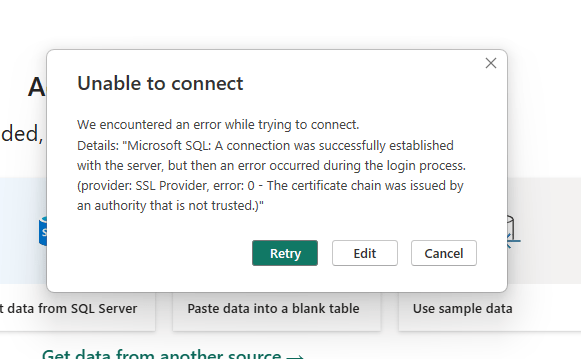
When trying to connect to a SQL database within Power BI Desktop January 2026 met with certificate chain trust error when trying to connect to the SQL Database using database DNS. Below is the error:

Microsoft SQL: A connection was successfully established with the server, but then an error occurred during the login process. (provider: SSL Provider, error: 0 – The certificate chain was issued by an authority that is not trusted.)”

Recently, after we applied the January 2026 Power BI Report Server update, we received several complaints from our developers building reports that they are having issues connecting to on-premises SQL Servers. After digging into the issue, I found that Power BI automatically attempts to encrypt connections (even when SQL Server is set to “Force Encryption=NO”, which is the option we had on the SQL Servers). We use CNAME entries for each database to have its own DNS name entry. For this reason, we didn’t create the SSL certificate. We can only chose one certificate per instance of SQL Server and in the case of having multiple database DNS entries, this option is not possible. Because of not having the certificate assigned to SQL Server, connection isn’t trusted on client machines where the Power BI Desktop is hosted. so the connection fails.

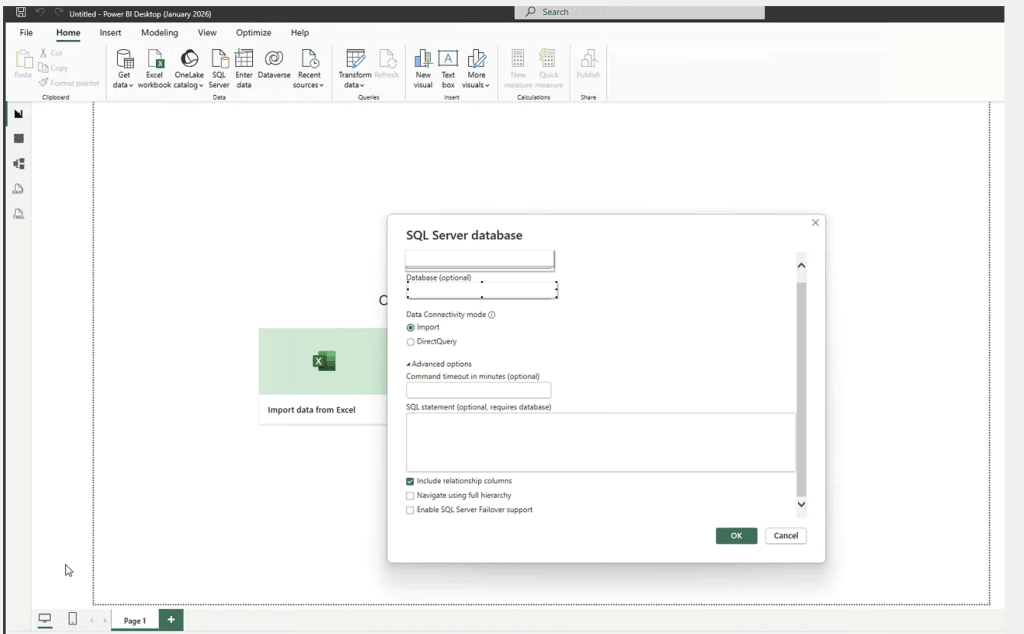
There is also no option shown in the Power BI Desktop advanced options to check the box for Trust Server Certificate. The kind we have in SQL Server Management Studio.

So, how do you resolve this when you can’t install the certificate on the SQL Server? There is a way we can resolve this. We can add the environment variable on all the client windows machines using the PowerBI Desktop.

I have found these steps on Microsoft website (please see the resources section down below) but I didn’t understand why we were seeing these issues all of a sudden after the January update. I contacted Microsoft support and they mentioned it that with Jan 2026 update, the connections are enforcing strict certificate validation. So, here I am following their suggestion.

Steps

Connect to the Windows machine. In the search bar at the bottom > search settings > system > about > Advanced system settings > Environmental variables

Click on the New under the Environment Variables > create new variable with name PBI_SQL_TRUSTED_SERVERS. In the variable value (usually, the value shown in your datasource of the direct query report)- give the FQDN (example – mysvr.microsoft.com) or Servernames seperated by commas (example – contososql, contososql2) or Machinename with the * at the end if you want to include all the SQL Server instances on the machine (example – contososql* which includes contososqlinstance1, contososqlinstance2 and so on). Click OK.

Repeat the same by creating the same variable with value in the System Variables too. Click OK.

Restart the Power BI Report Server and now try to connect to the report and you should be able to open it.

Set this environment variable on Windows machines using the powershell script to make the process simple.

In Windows PowerShell, type this in the console and hit enter. [System.Environment]::SetEnvironmentVariable(‘PBI_SQL_TRUSTED_SERVERS’,’*.contoso.com’, ‘User’)

Restart Power BI Desktop

This will help connect normally. Works on all your machines including Jan 2026 versions.

Test this on one machine first, then you can deploy via Group Policy for all affected machines. With the January 2026 update, Power BI enforces stricter certificate validation. When using SQL Server 2022 with Server DNS or AG listeners, the server certificate must match the DNS name exactly. Earlier versions allowed this without strict checks, so this is a security change. If the database DNS are used, adding the environmental variable is the best option.

Resources:

https://learn.microsoft.com/en-us/power-query/connectors/sql-server#limitations-and-considerations

Thank you for reading!

Microsoft Power BI Report Server January 2026 Update- Issue and the Fix

I recently updated all the PowerBI Report Servers to the January 2026 update. You can find the download link here and the feature summary here.

Picture Source

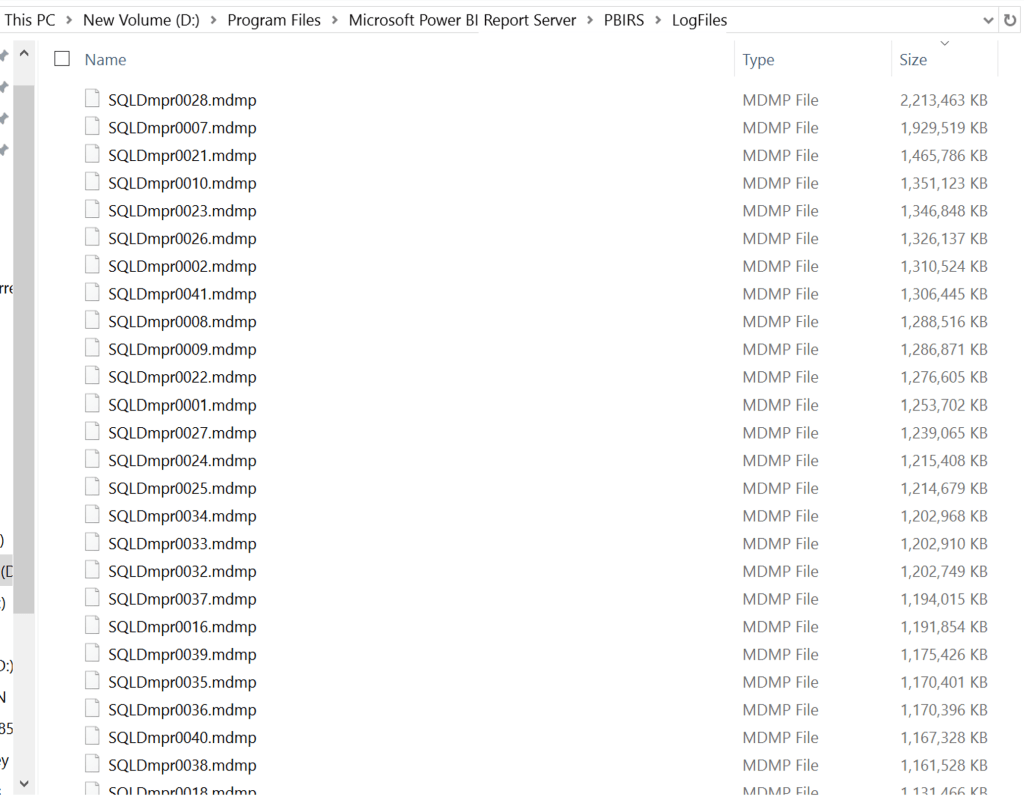
I first updated the lower environments and then prod, but since most of the reports were used only in production, I didn’t see the issue coming. So, the issue with this release was that crash dump files were generated in the logfiles (C:\Program Files\Microsoft Power BI Report Server\PBIRS\LogFiles).

Excessive Crash Dump files generated in the logfile folder

Due to the Excessive Crash Dump files generated on two nodes of the cluster (two-node scale-out deployment), the D drive, where these logfiles are generated filled up the space very quickly. We deleted the files manually until we had a quick fix for the issue.

I had contacted Microsoft support for help on this issue. They suggested to update the configuration file (C:\Program Files\Microsoft Power BI Report Server\PBIRS\LogFiles\ASEngine\msmdsrv)for the flag from <CreateAndSendCrashReports>1</CreateAndSendCrashReports> to <CreateAndSendCrashReports>0</CreateAndSendCrashReports> to stop creating these dumps. After making this change, I restarted the PowerBI Report Services. I made this change to both the nodes.

I didn’t see any crash dumps generated after making the change.

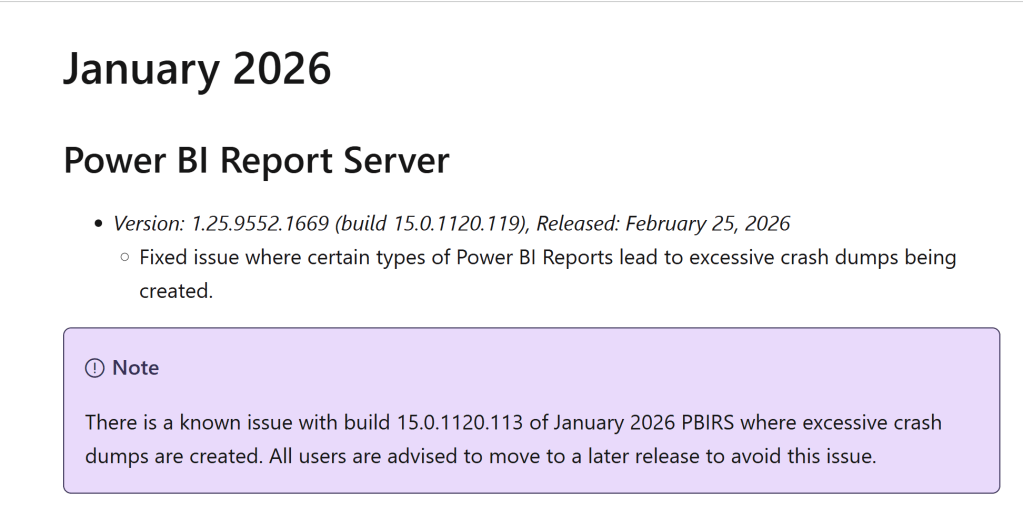
After that, Microsoft also reported the issue, and they released the fix mentioned on the Microsoft website here. You can download the February 25, 2026 release from here.

Before updating your PowerBI Report Servers, make sure to follow the steps below. All the steps below are needed in case you need to roll back the change.

  • Take a snapshot of the Server if it is a VM
  • Take a backup copy of rsreportserver.config file located C:\Program Files\Microsoft Power BI Report Server\PBIRS\ReportServer folder
  • Take a full backup of ReportServer and ReportServerTempDB database (Both database backups are a must if you need to revert back the update)
  • Take the backup of the encryption key and store the secret in a safe location for later use. I usually save it in Secret Server.

Summary:

Roll back plan is really important during situations like this. I had to update the update documentation with all the steps I mentioned above just in case if we had issues with the updates and we need to have a fix immediately. In this case, Microsoft provided the quick fix but what if it takes time for the fix to be released and the only way to roll back? Without the proper backups, rollback will be impossible.

That’s all from me for today. Thank you for reading!

May 2024 Power BI Report Server update – Fix “We couldn’t connect to the Analysis Services Server”

We recently updated our Power BI Report Server with a May 2024 update. Found that we were unable to open any reports using direct query. Paginated reports were all working fine. This also doesn’t apply to any reports using the import mode. We were not having this issue when using the Power BI desktop but only on the web page.

Below is the error message shown when opening the reports using direct query.

I had to check with my Community friends first as I was searching online if any others had the same issue. James Reeves, one of my community friends pointed me to resolution steps by sharing this medium article. Thank you to my friend.

As per my company standard procedures to contact Microsoft support for any issues, I have open a ticket with them to get action steps for resolution. They helped me resolve the issue. I promised them that I will be writing a blog post about how we resolved this issue so anyone having the same issue will have an idea of the resolution steps to this error.

When you check the Change log for Power BI Report Server, Version: 1.20.8910.25479 (build 15.0.1115.165), Released: May 28, 2024 release notes mentioned about the security change made during this update to add the environment variable and system variable on the Power BI Report Server machine.

Steps

Connect to your Power BI Report Server. In the search bar at the bottom > search settings > system > about > Advance system settings > Environmental variables

Click on the New under the Environment Variables > create new variable with name PBI_SQL_TRUSTED_SERVERS. In the variable value (usually, the value shown in your datasource of the direct query report)- give the FQDN (example – mysvr.microsoft.com) or Servernames seperated by commas (example – contososql, contososql2) or Machinename with the * at the end if you want to include all the SQL Server instances on the machine (example – contososql* which includes contososqlinstance1, contososqlinstance2 and so on). Click OK.

Repeat the same by creating the same variable with value in the System Variables too. Click OK.

Restart the Power BI Report Server and now try to connect to the report and you should be able to open it.

Also, do not forget to read the limitations to Connect to SQL Server database from Power Query Online here.

Thank you for reading!

Replication Error: ‘Cannot execute as the database principal because the principal “dbo” does not exist,this type of principal cannot be impersonated, or you do not have permission.’

This error is caused Intermittently by the Log reader agent in the transnational replication. When you observe the error, the database principal ‘dbo’ associated to the login mapped to the ‘dbo’ user cannot be impersonated. The database owner or login associated to ‘dbo’ user are not ‘sa’ but other windows authentication/SQL authentication login.

Solution:

  1. Stop the Log reader agent
  2. Change the ownership of the database using the below query:
ALTER AUTHORIZATION ON DATABASE::Databasename TO sa;
GO

3. Restart the Log Reader Agent.

Conclusion:

It is always advisable to map the ‘dbo’ user of the login to ‘sa’ to avoid the intermittent issues with Log reader agent in Transnational Replication.

Cannot Use Special Principal ‘dbo’ Error: 15404

Everything seems to be normal until someone yells at a DBA asking why they couldn’t give database role permissions to a login due to this error.

This error occurs when particular login in question is associated to ‘dbo’ user in the database. In other words, this particular login is the ‘db_owner’ of the database which is causing the issue.

This error occurs while we try to give any database role permissions to the login associated with ‘dbo’ user

I recreated the error by creating a new database name ‘Test’, create a new login with name ‘TestUser’ and giving the authorization to the newly created ‘testuser’.

CREATE DATABASE TEST
GO
USE [master]
GO
CREATE LOGIN [TestUser] WITH PASSWORD=N'@eE$9@', DEFAULT_DATABASE=[master]                
GO
ALTER AUTHORIZATION ON DATABASE::[Test] TO [TestUser]
GO

In the Login ‘TestUser’ properties, database mapping tab, you should see the login associated to user ‘dbo’

I then tried to add a database role ‘db_datareader’ to the database Test which throws an error

Solution:

Change the database owner to ‘sa’, then create a user associated to the login in the Database and then add the login to database roles with the new created user.

USE [Test]
GO
-- Change the database owner to 'sa' account
ALTER AUTHORIZATION ON DATABASE::[Test] TO [sa]
GO
USE [Test]
GO
CREATE USER [TestUser] FOR LOGIN [TestUser]
GO
USE [Test]
GO
ALTER ROLE [db_datareader] ADD MEMBER [TestUser]
GO

Conclusion:

These kind of errors seems to be tricky in the beginning, but once we understand the reason behind it, its pretty easy to solve. These kind of errors are caused by couple of reasons including database migration from lower environments of sql server. When the database is migrated to latest versions, the user ‘dbo’ user was not associated with ‘sa’ account. The other reason is when the authorization of the database is changed to specific login, ‘dbo’ user is associated to the login. It is always important to check which login is associated with the ‘dbo’ user in the database. You can check that using the below query:


--check which login is associated with 'dbo' user
select ab.name as DatabaseUser, cd.name as SrvrLogin, ab.type_desc, ab.owning_principal_id, ab.authentication_type_desc
	From sys.database_principals ab
		inner join sys.server_principals cd
			on ab.sid = cd.sid
where ab.name = 'dbo';

The result of the query looks like this:

Hope this helps!

Downgrading SSIS packages by changing the package version, why it might not be the right choice!

While we upgrade the sql server, we do upgrade the DTS/SSIS packages to the latest versions compatible with the upgraded sql server version. SSIS packages for sql server 2008/2008 R2 are build by Business Intelligence Development Studio (BIDS) and sql server 2012 or higher are build by using SQL server Data tools.

In some situations, Developers build SSIS packages using latest version of Data tools thinking it can be compatible with lower versions of sql server. I recently faced this situation where a developer build a package in 2012 version of data tools and tried to run the package in sql 2008 through sql agent job.

Changing the package version seems to be an easy fix, but usually its not!

Here’s why?

Once you change the package version by right clicking the dtsx package>open in notepad and change the version from 6 (sql 2012 version number) to 3 (sql 2008 version number), the package will be able to run on sql 2008 via sql agent job. But what about the execution results? Are they executing properly? Not always.

To test this scenario, I created a SSIS package using sql 2008 BIDS with name package.dtsx. This package has a execute sql task which executes a simple error raising script to see how these versions handle errors.

Below is the piece of code I use in the execute sql task for both versions of packages

Raiserror(‘Something went wrong’,16,1)

Note: For both the SSIS packages created, in the Execute SQL task properties> set both FailPackageOnFailure and FailParentOnFailure to ‘True’. This will make sure the package fails if the Execute SQL task fails.

Once I created the package, I tried to execute this ‘package.dtsx’ ( created by using sql 2008 BIDS) on sql 2008/2008 R2 using sql agent job. Ideally, it should throw an error.

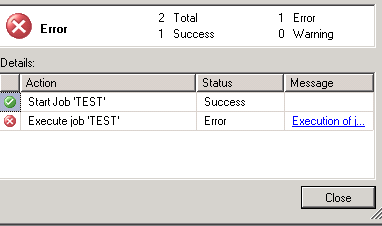
Executed the job and as expected, job failed. This is an expected behavior.

I Created the same package in Data tools 2012 with name ‘package_2012.dtsx’. Open the package in notepad and Change the package version 6 to version 3 and save the file.

This image has an empty alt attribute; its file name is capture-2.png

Now run this ‘package_2012.dtsx’ using sql server agent job

Execute the job and check the results, it get executed successfully. In this scenario. this is a wrong behavior. As Execute sql task has raiseerror code in it, package should throw an error, but it didn’t.

Conclusion: By just changing the Package version from higher to lower version numbers may allow lower versions of sql server execute the package through sql agent job but It doesn’t mean that the package is executed efficiently. In this scenario, package should fail by throwing an error but it doesn’t fail and executed as success. It is always better to create the SSIS packages using BIDS or Data tools based on the sql server version on which the package should run.