T-SQL Tuesday #169 – Hey You Wonderful, Patient Souls!

Thank you my dear Friend Kay Sauter for hosting the December month of T-SQL Tuesday. Here is the invitation. I believe this is the perfect way of saying thank you and Goodbye to the year 2023.

Let’s take a moment here. Seriously, stop scrolling for a second. Can we all collectively pat ourselves on the back for a second? I mean, seriously, YOU all deserve a medal or at least a virtual hug for hanging around and being the absolute best bunch of readers of this blog!

Out of all the other wonderful things around the world to watch for, out of all the other endless distractions we have in this social media world today starting with cute little kitten videos all the way to your favorite actor movies, possibilities are endless for the entertainment. Still, you decided to spend your time chilling here reading all my ramblings. Seriously, I am speechless! Thanks for your commitment and patience with me.

Thanks for even taking my emotional side of things. I am an emotional person and a part of me from that side of my personality should have shown up in some of my blog posts. Especially, when I sit in the night and put my thoughts in here. My thoughts are unfiltered. You have braved to see me from that angle as well. I mean, my Drama! Thanks for embracing the unpredictable side of me.

So, THANK YOU!

Thank you for being my best virtual friends, and for spending your time and attention! Thank you for being so patient with me as I compose and do the posts.

You are all my real MVP’s and these little bi(y)tes of dbanuggets wouldn’t be the same without you!

So, my awesome and amazing readers! Keep being yourself! Never ever let anyone dim your light! Cause, you are born to stand out!

Embrace this life, keep being fabulous, be curious, enjoy the little things in life, cry, scream, and laugh the life. There is nothing wrong with it. After all, we just have one life and we want to be authentic. Show the emotions instead of suppressing them. Tell people in your life you love them. Do not worry about making mistakes. There is nothing bad in being wrong. There is nothing wrong with it. Keep being YOU!!

Keep that Smile, it may brighten someone’s day!

SQL Server 2022: Enable Azure AD Authentication for SQL Server on VM

To enable the SQL Server 2022 on a virtual machine to use Azure AD, we need below things:

Managed identity and its permissions to query Microsoft Graph: When you enable the AD on the SQL Server 2022 and create the Azure AD login and that user trying to login, the managed identity will be used to Query the Microsoft Graph and that is the reason we need to give this identity the permissions to Query Microsoft Graph. The security of this managed identity is at the resource level. Here the resource is a Virtual machine.

To set up the Azure AD authentication for SQL Server on VM, we can do this by using System-assigned managed identity or User-assigned managed identity.

System-assigned managed identity is easy to manage and configure as this identity will be deleted when the VM is deleted. It will have validity until the VM has its life whereas the User-assigned managed identity will be used at scale for many SQL Servers on the virtual machines.

In this post, we are learning how to enable the AD authentication to SQL Server on VM. So, we need the SQL Server 2022 which is installed on the Azure VM and we will have to register the Windows SQL Server VM with SQL IaaS Agent extension.

Permissions:

These are the below permissions needed to connect the SQL Server to VM to the managed identity:

User.ReadALL, GroupMember.Read.All, and Application.Read.All.

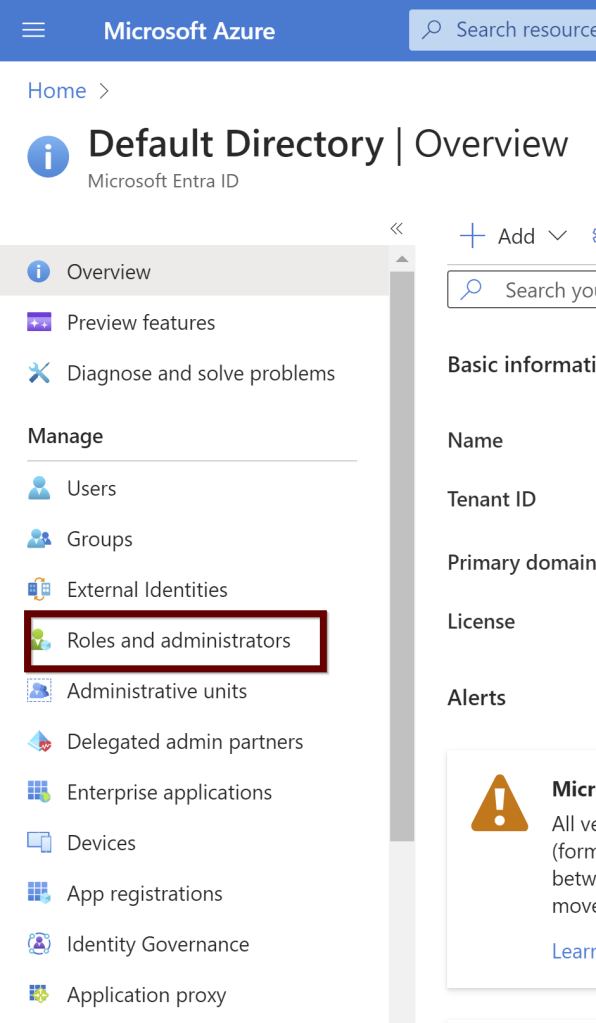
The managed identity must also have Active Directory reader permissions. Search for the Microsoft Entra ID

Under the default directory, click on the roles and administrators

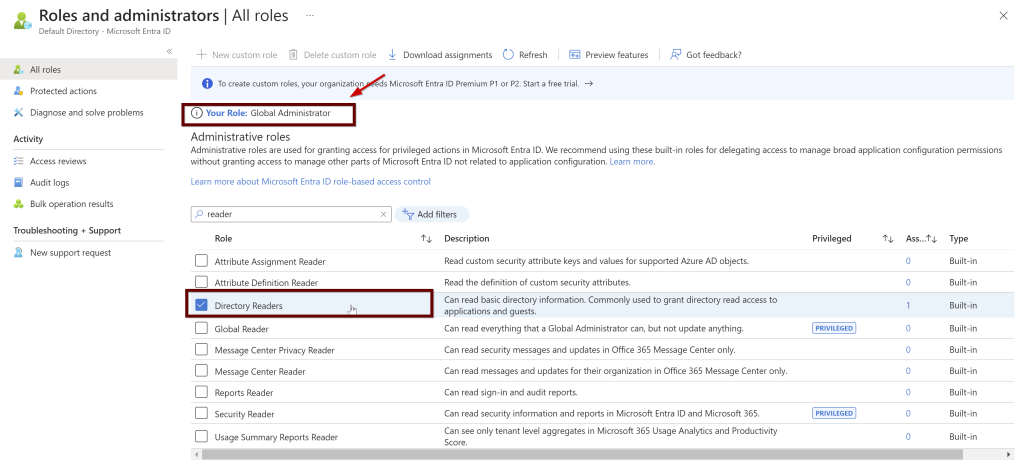
Make sure you have Azure AD Global administrator permissions before giving the identity the reader permissions to the Azure AD

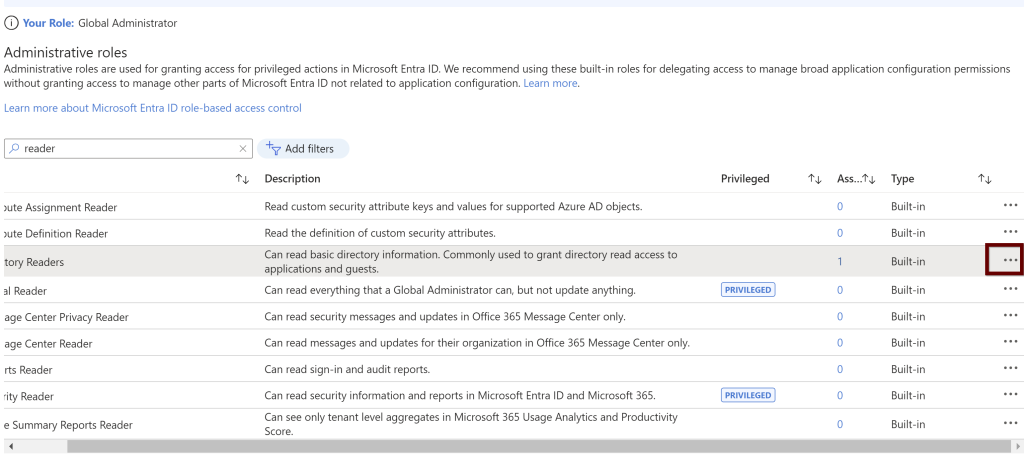
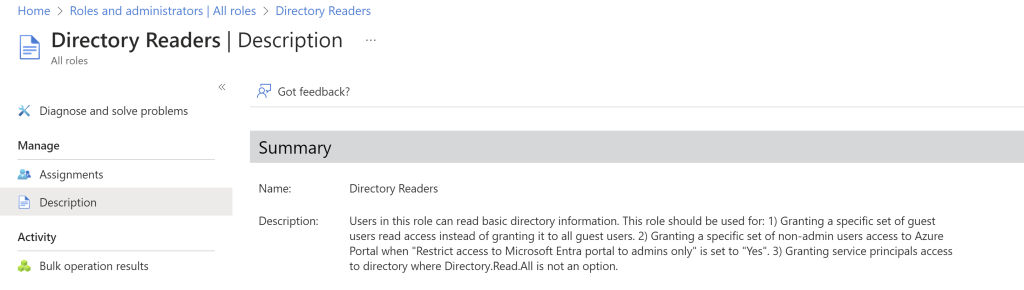
If you scroll your bar right side, you can see the ellipses button. Click on that to see the description of the role

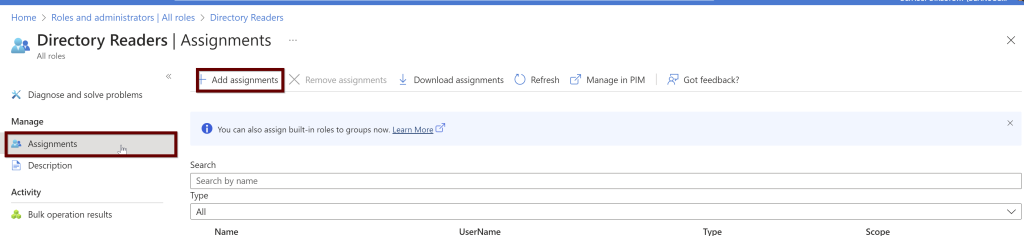
Under the directory readers, click on assignments and then click on add assignments

From the list, choose the VM name if you want to use the system assigned managed identity

Click on Add at the bottom of the page

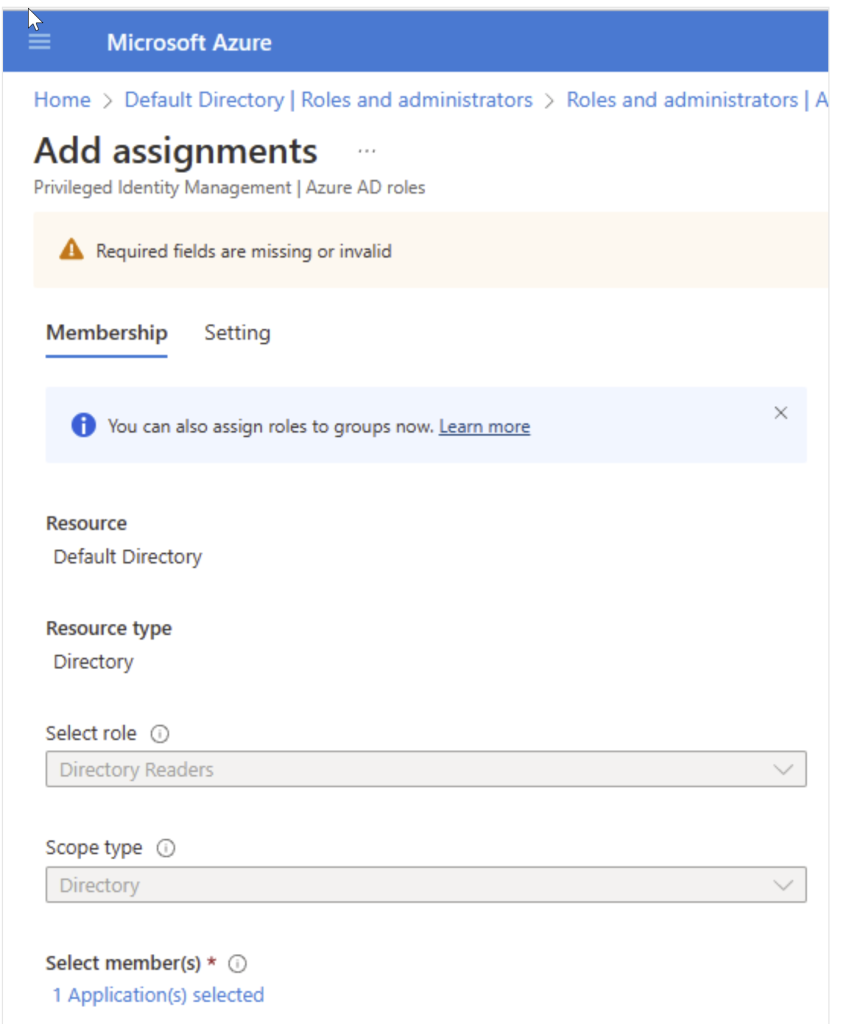
You will see the below screen. Make sure the application (VM name) is mentioned under the select members. This is if you choose the system managed identity. Click next.

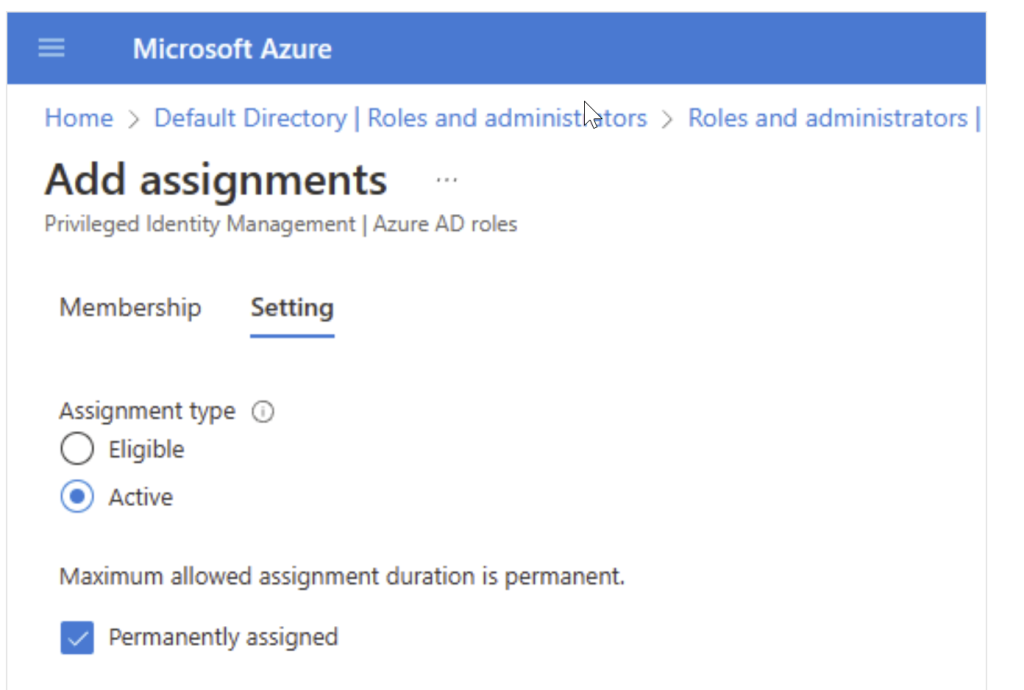
As you click next, you will see the below screen. Make sure the assignment type is active and click on the box for permanently assigned. At the bottom of the screen, you will see the assign button. Click on that.

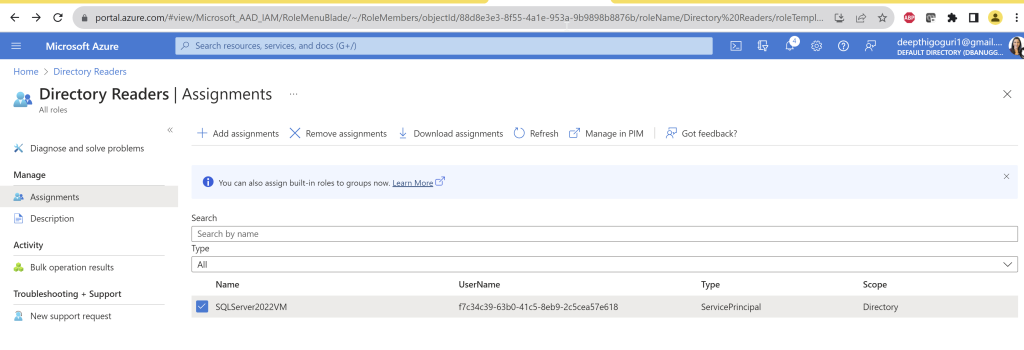
Under the directory readers, you will see the vm system assigned identity is being added.

If you want to choose the user-managed identity, choose it.

Enable the Azure AD authentication in the Azure VM

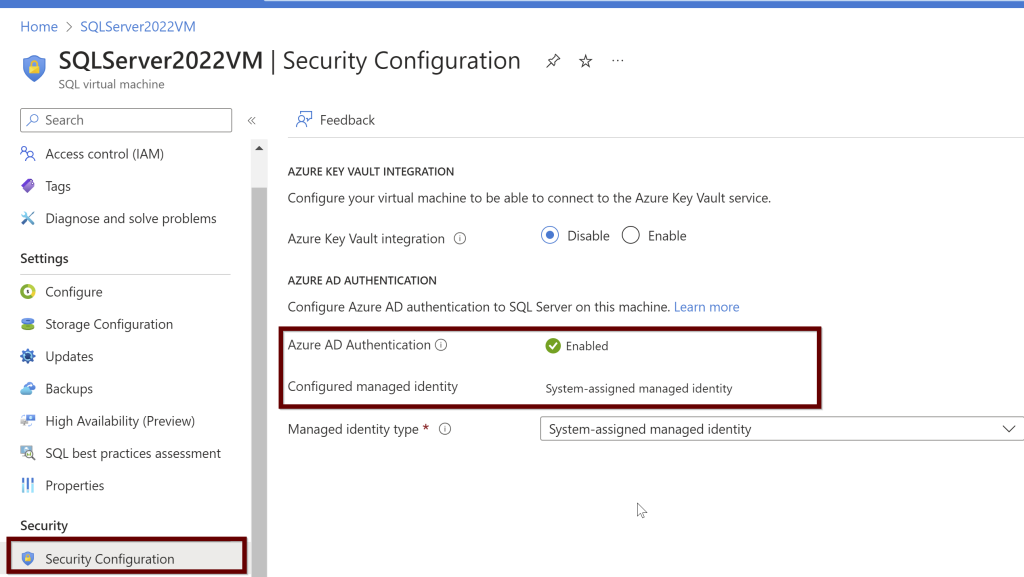
Under the SQL virtual machine (Make sure your VM is turned on and the SQL virtual machine is online as well to see the enabled security configuration option in the left blade under the security tab). Enable the Azure AD authentication. Here, I already enabled it earlier and so you see it as enabled.

Remember: Once you enable the Azure AD authentication, you cannot disable it.

If you want to enable the Azure AD authentication, you will see the below screenshot. Click on enable and hit apply at the bottom of the page.

In this blog post, you have read the process of enabling the Azure AD authentication on Azure VM. Only Windows Server 2022 VM’s are supported to enable the Azure AD authentication with the SQL IaaS Agent extension.

Thank you for reading!
References:

Microsoft articleEnable Azure AD authentication for SQL Server on Azure VMs

T-SQL Tuesday #165 – That Job Description I read and Couldn’t Stop Laughing!

Please excuse me if this post is going to be the funny one, yes it is!

I would like to first thank my dear friend Josephine Bush for bringing up this great topic and asking us to write about how the proper job titles and descriptions should be for the job postings.

I surely have a lot of thoughts on this topic. Two years ago, I was applying for Database administrator positions everywhere. If not everywhere, almost everywhere. Linkedin, Indeed, Monster, CareerBuilder, etc. As I was looking at the Job titles and Job descriptions at the time, my blood boiled at the beginning looking at the requirements. More about this soon. I was already stressed about figuring out a way to get a job soon and on top of that stress, unreasonable job descriptions caused me more stress. After a couple of days, that stress turned out to be a stress reliever. Yes, you read that right. In the beginning, I was madly looking at the job description mentioned for a SQL database administrator role mentioning high expertise in the languages – C++, Java, PHP, Python, etc; but later as I was checking on many of these types of job descriptions made me laugh and had helped me filter out the companies that I can ignore applying.

The other funny thing I observed is the description mentions that the company is looking for a senior-level position and mentions the salary as 15 dollars per hour. The description for this kind of job posting also mentions the certifications as needed or preferred.

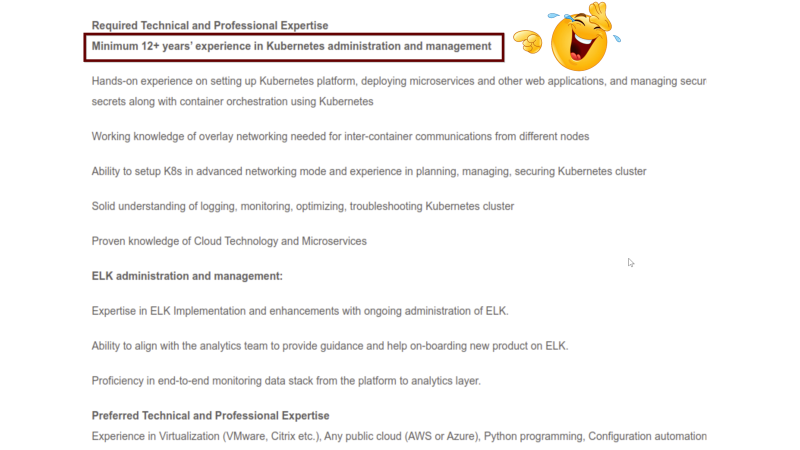
To take this to another level, I would like to show an example of postings from one of the best companies (Don’t want to point out the company name here) back in 2020 for the position of “Cloud Native Infrastructure Engineer” mentioning the requirement is to have 12+ years of Kubernetes experience when in fact the Kubernetes technology was released in 2014 which was just 6 years. Source

I believe many companies rely on people who do not have much experience with technology to post about these job openings and their descriptions. Due to this, great candidates who can be a great fit for the position would not even consider reading the entire description. This can ruin the reputation of the company.

One more hilarious experience of mine –

My first-ever job was with the title “Database administrator” but as I enter the company, the first day I received a tag with my name, picture, and with the title “Database Developer”

Hope you enjoyed reading this post and my request to anyone looking for a job actively ignore these type of job descriptions!

I am curious to read all other posts on this topic for this month of T-SQL Tuesday!

Thanks for reading!

SQL Server 2022: Guide to setup Azure Active Directory Authentication for SQL Server

Applicable to-

SQL Server 2022 on-prem on Windows and Linux and SQL Server 2022 hosted on Windows Virtual Machines.

Once you install the SQL Server, there are three different authentication methods that you can use to connect SQL Server along with the Windows and SQL Server authentication. They are –

  1. Azure Active Directory Universal with Multi-Factor Authentication
  2. Azure Active Directory Password
  3. Azure Active Directory Integrated

If you join the Windows Server Active Directory and Azure Active Directory, then you can use both the Windows login and Azure AD login to SQL Server.

Remember: To connect your SQL Server to Azure AD, your SQL Server and the host that runs the SQL Server should be registered in Azure Arc. If you have not already connected your SQL Server to Azure Arc, here is a step-by-step guide to do.

The user that is used to set up the Azure AD should have the contributor role for the server and on the Keyvault.

Prerequisites:

When installing the SQL Server 2022, the extended functionality in Azure will automatically install the Certificate that is stored in the Key Vault and Azure AD application automatically as we create the Azure AD admin for SQL Server.

  1. Setup Azure AD admin

The account that is being used to create the Azure AD admin account must be in the contributor role for the KeyVault and for the Server as well from the Azure Arc.

Permissions are shown under the Access control (IAM) under the KeyVault

Permissions as shown under the Access control (IAM) under the SQL Server-Azure Arc

Setting up the Access Policies under the KeyVault

Under the Key vault, select the permissions as shown below. You will find these under the Access policies within the KeyVault

Figure 1

Setting up the Access Policies under the Azure AD users

Figure 2

While setting up the Azure AD admin, portal functionality will automatically create the Key vault certificate and the Azure AD application registration but you can also manually create your own certificate and also setup the Azure AD application registration.

You can create the Azure AD admin user using the portal/PowerShell/Azure CLI/ARM template. If you are creating using the ARM template then you need to create the Key vault certificate and Azure AD application before setting up the Azure admin.

Azure AD admin setup for SQL Server

In the Azure portal, search for “SQL Server – Azure Arc” and select it from the services listed.

Choose the Azure Arc SQL Servers registered. Select the Active Directory from the left side pane.

Select the user you want to use and select the Service-managed cert and Service-managed app registration. For the key vault, select the key vault and click select. Once you choose these options, click on Save at the top. If you followed all the steps correctly from the beginning, you should not see any errors.

During this process, a call is sent to the Azure Arc agent which will then configure the Azure AD authentication for your specific SQL Server instance. This process will take a couple of minutes to complete.

So while this process is going on, there are certain things that will happen automatically behind the scenes.

  1. The certificate is created in the key vault you selected with the name format hostname-instancename-uniquenumber as shown below

The Azure AD application is created with the name in the format of hostname-instancename-uniquenumber as shown below.

The necessary permissions also will be granted to this application automatically. To see what permissions are provided, please look for the steps below:

Open the application (here, I am using the manually created application name SQLServerCTP1. Once you open the application, in the left side pane click on API permissions.

Click on the Microsoft Graph and request API permissions (see a couple of screenshots below)

3. Then the certificate from the Azure Key Vault is assigned to the application and saves all of these settings to Azure Arc.

Remember: The certificate created automatically is not managed and rotated by Microsoft. It is up to the customer to manage the certificate. For that reason, we can also create our own certificate along with the application for Azure AD admin setup. Follow the below steps to create your own certificate and application.

According to Microsoft docs, Steps that need to install Azure AD to connect to SQL Server are:

  1. Create and register an Azure AD application and Grant permissions to the Azure AD application
  2. Create and assign a certificate
  3. Configure Azure AD authentication for SQL Server through the Azure portal
  4. Create logins and users
  5. Connect with a supported authentication method
  1. Create and register an Azure AD application

In the Azure portal search bar, search for Azure Active Directory and then choose App Registrations from the left pane. Then click on New registration

Go to the application. On the left side pane, click on the API permissions.

Next, give all the permissions needed for the application. Select the Microsoft Graph

Click on the application permissions

In the search bar, select the Directory.Read.All and select the permission and click on add permissions.

Follow the same steps again. Go to the application> left side pane select API permissions> Microsoft Graph> Delegated permissions

Select all these and grant admin consent. As per the Microsoft doc, the user that giving the permissions should be a part of Azure AD Global Administrator or Privileged Role Administrator.

  1. Application.Read.All
  2. Directory.AccessAsUser.All
  3. Group.Read.All
  4. User.Read.All

2. Create and assign the Certificate

Go to the Key Vault account if you have it ready to place the certificate. If you don’t have one, create one. Here I already have it.

Click on Generate/import > Give the certificate name. Check for the validity period and by default it is 12 months which is recommended. rest all the options as is as per default values and click Create.

Click on the certificate later to see if it shows online. If it doesn’t please refresh the page to see it online. Download the CER format of the certificate. You need this download to upload to the certifications under the application.

Go to the application that was registered page. On the left pane, click on the certificates and secrets. Under the Certificates click on upload

Upload the certificate from the downloaded location and click on add.

Next, go to the key vault where the certificate is saved to provide the permissions. Add Access Policies.

Click on the principal>give the computer name>click next> review and create.

3. Configure Azure AD authentication for SQL Server by creating the Custom-managed Cert

Click on the SQL Sevrer instance linked to the Azure Arc for SQL Server> go to the active directory>click on set admin>

Select the Customer-managed cert and chose the certification. From the drop-down menu, you will see all the details. Choose the appropriate ones and click select.

In the same way, you will also choose the SQL Server app registration.

Select the app registration>select app registration>select the app>select

After you have selected it, click on the save button at the top

You should be able to see the login in the sql.server_principles on the server but it is not sysadmin yet.

You can either give the sysadmin permissions through GUI in ssms tool or you can use the below script. Here I am using my email credentials but you can replace that with your AD admin user email credentials.

ALTER SERVER ROLE sysadmin ADD MEMBER [deepthi@dbanuggets.com]
GO

4. Create logins

Once you give the sysadmin permissions to this account, it can go ahead and create any number of Azure AD logins. For example, I took some examples from Microsoft docs.

-- login creation for Azure AD user
CREATE LOGIN [user@contoso.com] FROM EXTERNAL PROVIDER;
GO
-- login creation for Azure AD group
CREATE LOGIN [my_group_name] FROM EXTERNAL PROVIDER;
GO
-- login creation for Azure AD application
CREATE LOGIN [my_app_name] FROM EXTERNAL PROVIDER;
GO

5. Connect with a supported authentication method

You can try to log in now using the Azure AD authentication from ssms tool shown below:

With the multi-factor authentication, you will need to login into Azure and you will be connected to SQL Server 2022 with an Azure AD admin login.

Summary

In this blog post, you have learned how to Create an Azure AD Authentication connecting to SQL Server 2022. We have seen creating the Certificate and the application automatically by Azure to add Azure AD admin to SQL Server but also we have learned how to manually create the Certificate in Key Vault and create an application as we try to add Azure AD admin to SQL Server 2022. Finally, we were able to connect to the SQL Server by using the Azure AD authentication using ssms tool.

References

  1. Azure Active Directory authentication for SQL Server
  2. Set up Azure Active Directory authentication for SQL Server
  3. Using automation to set up the Azure Active Directory admin for SQL Server

Thank you for reading!

SQL Server 2022: Step-by-Step Guide to Connect your SQL Server to Azure Arc

When you install SQL Server 2022 through the GUI, you will see an option in the features “SQL Server Extention for Azure”

If you are selecting this option, be ready to have all the information shown below:

Failure to provide any of the below will throw below error:

I have seen the above error multiple times while I tried to enter the values. I believe that I provided the correct values but not sure if I was missing anything. I decided to install the SQL Server 2022 without including this extension from the GUI but instead install the Azure arc manually later. This blog post shows exactly the same. A step-by-step guide to install and configure connecting your on-prem SQL Server into Azure using Azure-arc.

You need to have an active subscription to install Azure Arc connection to your SQL Server. In the Azure portal search bar, select “Azure Arc SQL” and select SQL Server – Azure Arc from the list.

Click on add

Under Add existing SQL Server instances> Click on Connect Servers

Check all the prerequisites are in place

Provide the subscription, resource group name, Region, Operating system, Servername (Hostname of the server which will include all the instances including the default instance of SQL Server), License type

By default, all the instances will be included as you provide the machine name but if you would like to exclude any instances, you can provide the name of the instance separated by a comma.

I am not going to provide any tags here, click next to run the script

Observe this page properly. Copy the code.

In the second step, it shows “Run the above script on the machine you set up the prerequisites. Make sure the machine has network connectivity to Azure and to your target machine with SQL Server.

For Windows only: The PowerShell script you download will be unsigned. You can sign the PowerShell script or you can run the script by setting the PowerShell execution policy to allow running unsigned scripts.”

I used the execution policy for the current user to run the Powershell script. In PowerShell window, run the below script which will give the current user permission to execute the scripts.

Get-ExecutionPolicy -Scope CurrentUser

Now, Paste the code that you copied in the PowerShell and hit enter.

Azure extension for the SQL Server is installed. Check for the registered SQl Servers in Azure Arc.

Click on the instance to see more details about the server. I have clicked on my named instance>databases from the left side blade. You can see the list of databases

I would like to connect to Azure from SQL Server 2022 on-prem. To do that, you need to enable Azure Active Directory. In the next blog post, I will explain how we can set up the AAD (Azure Active Directory authentication) to SQL Server 2022 and connect from your local SQL Server management studio to Azure.

Thanks for reading!

T-SQL Tuesday #164: Code that made me feel happy

This month T-SQL Tuesday is hosted by Eric Darling asking us to write about the code that made us feel a way.

I would like to mention the Query Store hints and why I really liked it. If you have a parameter-sensitive query in your stored procedure and you need to use a hint (For example, using RECOMPILE hint in this case) to fix the issue quickly without changing the actual code, using query store hints is the best option. Not only that, but you can also use other useful hints like setting up the MAXDOP, Compat level etc. For the list of supported and unsupported hints, look here.

Remember: This is the best last option to choose when you cannot change the code. It is always best to refactor the stored procedure.

It is very easy to use. You just need to collect two things. The query ID of the stored procedure and the query hint option you would like to use. There is a special stored procedure that you can use to implement this Query hints into your stored procedures.

To find the query_id of your query, run the below code by changing the Query text in the like operator:

/* Find the query ID associated with the query. Source */
SELECT query_sql_text
,q.query_id
FROM sys.query_store_query_text qt
INNER JOIN sys.query_store_query q ON qt.query_text_id = q.query_text_id
WHERE query_sql_text LIKE N’%query text%’
AND query_sql_text NOT LIKE N’%query_store%’;
GO

Use the Query_id to run the below-stored procedure with the hint you would like to use

EXEC sys.sp_query_store_set_hints @query_id= 1, @query_hints = N’OPTION(USE HINT(”RECOMPILE”))’;

Query store can also capture ad-hoc workloads. This can fill up your query store real quick if you have a lot of ad-hoc queries coming from your applications. If you can parameterize these queries, configuring PARAMETERIZATION = FORCED the database can be an option. Look more about Forced parameterization here. If you can’t parameterize those ad-hoc queries, you can set the Optimize for Ad hoc Workloads server option to save the cache memory on the queries that will execute only once. If you do not want to capture this kind of queries in the Query Store, set QUERY_CAPTURE_MODE to AUTO.

Remember:

  1. If you enable the forced parameterization and use the query hint RECOMPILE at the same time, the query engine will ignore that query hint and proceed with using any other hints used. If you are using the Azure SQL database, you will see the error with code 12461 when the RECOMPILE query hint will be ignored. Source
  2. Query Store will only store the latest hints that are active. It will not store the history of the hints that were active once. To capture that information, you can use extended events. I have written a blog post here on exactly how you can set this up so you can get the history of the hints.

I am looking forward to reading other SQL family member posts on this month’s T-SQL Tuesday post hosted by Erik Darling!

Thanks for reading!

SQL Server 2022: What is Azure Arc Enabled SQL Server?

Azure Arc will offer the capabilities to manage your On-prem SQL Server instances, other Servers, and applications that are running outside of Azure. It is like a central location where you can see your resources and manage them from Azure. This is very useful when you want to know the inventory details of both your on-prem Servers and Azure resources if you are in using hybrid ways, i.e. having resources from different cloud providers or having resources outside Azure including On-prem SQL Servers.

Inventory includes the basic details of your Servers like the hostname of the machine where your Server is hosted, the name of the instance, version, edition, and amount of resources like CPU and memory allocated to the Servers. As you will be in Azure, take advantage of the Azure Resource Graph Explorer to get these details. You can create customized dashboards and create charts.

Reference: The diagram as shown on the Microsoft website demonstrates what the SQL Server inventory looks like using the Azure Graph Resource Explorer.

You can also get the best practices assessment after enabling the Azure Arc-enabled SQL Servers. This assessment will analyze the SQL Server configurations comparing the best practices based on Azure standards and provide recommendations.

Cost Savings

You can save money by using Microsoft Defender for Cloud after enabling Azure Arc-enabled SQL Server. Microsoft Defender for Cloud feature will do the Vulnerability assessment and threat protection. More on this topic, I have written a blog post here.

If you would like to use the Azure Purview feature, it becomes easier to use as the Azure Arc-enabled SQL server will come with access policies that will be helpful to connect to SQL Servers with ease.

The architecture of Azure Arc-Enabled SQL Server

Some important points to remember:

There are three important agents that are needed to enable the Azure Arc-enabled SQL Server.

  1. Azure Connected Machine Agent – This agent will help manage the Windows and Linux machines hosting outside of Azure.
  2. Azure Extension for SQL Server
  3. Azure Monitoring Agent – The Microsoft Defender for cloud and best practices assessment needs this agent. This extension is needed to put the collected data in the log analytics workspace.

If you are installing the SQL Server 2022, use the Azure extension for SQL Server to connect to Azure. You will find this feature in the feature selection pane during the installation.

But even if you have this easy button to select and connect to Azure from SQL Server 2022, you can still install the Azure Arc-enabled SQL Server. You can install Azure extension for SQL Server from SQL Server 2012 and up.

Prerequisite Steps:

To enable the Azure Arc-enabled SQL Server, you need to have an account in Azure with a subscription that is active. You need to verify Arc-connected machine agent network requirements. The Arc agent needs to be running in Full mode. You will also need to connect to Azure Arc data processing service by opening up the outbound rules on each of the servers (virtual or physical) (Source) to URL: san-af-<region>-prod.azurewebsites.net and to port 443.

Also, you need to register for the resource providers –

Microsoft.AzureArcData and Microsoft.HybridCompute – you can do the installation very easily by connecting to the specific subscription and under the settings >select resource providers and register these two providers.

Service Principal Permissions needed to install the Azure Arc-enabled SQL Server

  • Read permission to Subscription
  • Permissions to Azure resource group –
    • Azure Connected Machine Onboarding role
    • Microsoft.AzureArcData/register/action
    • Microsoft.HybridCompute/machines/extensions/read
    • Microsoft.HybridCompute/machines/extensions/write
  • If you are manually installing the agent or using the command line interface to install the agent, you need to have administrator permissions on the machine you would like to install. This can be a Windows or Linux machine.
  • In case of deploying at scale on multiple Servers – The service principal needs to have a User Access Administrator role to install the system-managed identity and Resource policy Contributor role assignment at the resource group level or at the subscription level.

To check for the limitations at the subscription or resource group limitations, please read this post here.

In the next blog post, we will learn how to install the Azure Arc-enabled SQL Server using the Azure portal so you can start to see all the Servers outside of Azure in the Azure portal which makes the management and identification of your inventory easy.

Resources:

  1. Prerequisites
  2. Azure Arc-enabled SQL Server

Thank you for reading!

T-SQL Tuesday #163 Invitation – Embrace Your Style!

Welcome back to reading another T-SQL Tuesday for June month. This month’s invite is from my dear friend Gethyn Ellis asking us to write about the best career advice we received. Here is the invite.

I would like to list some of the best advice I received in my life which helped me rethink life. They give me the strength to see past the pain and help me move forward in life.

Embrace your Style but wait, What is your Style?

This is the best career advice that I received from one of the best people in the community. I can’t thank them enough for this advice. This is about two years ago when I started my blogging and speaking career. As I was fairly new to speaking, I struggled to find out what my style was. Style in the sense of bringing your true authentic self onto the stage. Fear of being judged and accepted by the community stopped me from being who I am at the time. I didn’t even realize this for so long. I thought everything was normal but something inside me was always telling me that I was not good enough. Something needs to change but I didn’t know what it was until some special people from the community told me that I have my own style and it is just that I need to figure that out.

I was confused at the beginning about what this style even meant but as I tried to understand more, I finally realized what it actually mean. Your style is nothing but showing who you actually are, truly and authentically. Everyone will have their own style. In every little thing you do, you will have your own mark on it. The way you do things is your style. Are you doing your best but still feel you lack something? No matter what, the way you do things and the way you present can give a unique and add your perspective to it which in itself shows the beauty in the work you do, which is your style that no one else can do other than yourself. The moment I realized this, I started embracing the way I look and do the things in life. I added my perspective to the things I present which are unique and there will be people who love this or may not love this but you will have your own mark which will attract the right audiences to you. There are always people who wanted to learn from your perspective.

This applies to many things in my life including my blog posts, my presentations, the way I speak at conferences, and the way I act and think in life. I accepted who I am and started embracing the authenticity in me. I started speaking from the bottom of my heart. I was scared to do this before in fear of judgment but as I started speaking for what I felt, people actually started liking me even more because they saw the truth in what I speak. By choosing to live this way, we can make genuine connections in life and value the ones who stick around valuing who we are.

This is a great lesson I have learned in my life.

2. If you are troubled by external circumstances, it is not the circumstances that trouble you, but your own perception of them and they are within your power to change at any time. ~ Marcus Aurelius

In life, most of the things that happen to us are outside of our control. The problem gets bigger and bigger when you try to control what you can’t control. If we can only differentiate every event that happens to us into two categories, what is in our control and what is out of our control, most of the problems will be solved.

Focus on only what is in your control and leave the rest. Most of the time, what’s in your control is how you react to the events that happened to you. That’s the only thing that you can control. This is one of the Stoic philosophy principles that I learned recently.

3. Going within self is the only solution

What does this even mean, right? Most answers that you are searching for from outside of yourself are found within yourself. When you fail at something or you are facing a situation in life, for example, you want to resign from that job you are unhappy about but something inside you is stopping you from taking action – Going within yourself is the only solution to learn about yourself, what actually is stopping you and what can be done to remove that fear. Asking for help is a great idea when you are facing a situation in life but we need to first help and stand up for ourselves by examining ourselves what is the actual problem. Other people can suggest you but it is up to you to decide what is right for you.

I am not a philosopher to show off as if I identified something in life which was not there before. These are all the things I have been learning from the greatest philosophers in the history of mankind. I just thought of sharing them with you all as I felt it was the right time and topic for this month’s T-SQL Tuesday.

These all things I explained here apply to every part of life, professional and personal.

I would like to thank Gethyn for bringing this topic to June month of T-SQL Tuesday. I believe that I shared some of my learnings that really helped me in every aspect of my life.

Hope you liked it and thanks for reading!

Quick Track: Beginner’s Guide to Azure SQL- Auditing in Azure SQL

I know it’s been a while since I blogged. It’s been busy at work and I felt I had to take some time off. Firstly, I would like to apologize to the regular readers of this blog and I would like to thank some of them for remembering me and reaching out to me asking to write. Thanks for checking on how I was doing.

As a continuation of the Quick track series on beginner’s guide to Azure SQL, this post is about Auditing in Azure SQL.

As you all know how crucial it is to Audit activity on the Server for both prod and non-prod environments, turning on the auditing in Azure SQL is pretty simple and the results we see in the audit log are similar to the logs we see on-prem. The difference is where we save the audit data in Azure.

You can enable the auditing at the Server level and at the database level just like the way we can audit SQL Server on-prem. If you would like to enable audit at the Server level in Azure, it will automatically audit all the databases under that Server. If we allow the auditing at the server level (logical Server for Azure SQL Databases) and also at the database level, we might get double the amount of collected audit data as it contains the same data twice. Always chose the Storage account if you wanted to audit the data at the Server level. If you just want to collect the audit data on one or some databases only, you can disable the logical Server level audit and enable the Auditing at the database level.

If you want to specifically use a different storage method from the other audited databases or wanted to modify the default action policy groups to any specific databases, you can choose the database level auditing instead of the Server level auditing. By default, the login activity, queries, and stored procedures are audited.

The default audit policy for the Server and the Azure SQL databases includes

  1. BATCH_COMPLETED_GROUP
  2. SUCCESSFUL_DATABASE_AUTHENTICATION_GROUP
  3. FAILED_DATABASE_AUTHENTICATION_GROUP

To enable the Auditing at the logical Server level- Go to the auditing blade on the left under the logical Server> Enable SQL Server Auditing> turn on.

Chose the audit log destination among the storage/Log analytics/Event Hub. You need to select the subscription and provide the log analytics workspace. If you already have one, select it or create one right here if you do not have one. If you need any kind of support from the Microsoft support team in the future, make sure to enable the option “Enable Auditing of Microsoft support operations” so they can have access to your logs when they work with you.

If you are choosing Server level auditing, then select the storage as destination and you will have to choose the authentication type: Managed identity (system-assigned and user-assigned managed identity is supported as per Microsoft). You can choose the retention period here as well. 0 represents unlimited retention. Changes made to the retention period will only effect the future collection of the Audit data. Any collected information while it was set to unlimited will be always retained.

To specifically enable the auditing at the database level, go to the database and select the auditing blade on the left side> Enable Azure SQL Auditing> Turn on

To view the audit logs of the database>go to the auditing blade on the left side>click auditing>click on view audit logs.

You can see the audit logs of the database. You will see the query where you can edit and filter the results.

If you would like to modify or view the audit policy through Powershell, there are some command lets you can use.  Source: Microsoft

Get-AzSqlServerAudit – Will give the Server level audit policy

Set-AzSqlServerAudit  – You can create or modify the Server audit policy

Remove-AzSqlServerAudit  – use to remove Server audit policy 

Get-AzSqlDatabaseAudit – Will give the database-level audit policy

Set-AzSqlDatabaseAudit  – You can create or modify the database audit policy

Remove-AzSqlDatabaseAudit – use to remove the database audit policy 

Here is an interesting question asked by a user on how to filter out specific login as it causes a huge amount of data. You can find the resolution here.

You can also check the audit logs from the home blade>monitor>logs. You can see the same audit information here.

For more examples on how to add or modify the auditing policy, here is the article from Microsoft you can follow.

Hope this blog post gave you an overview of auditing in Azure SQL.

Thanks for reading!

T-SQL Tuesday #159 – Wrap Up

By the way, What is New Year Resolution?

I am overwhelmed with gratitude by looking at the number of responses we received for my February month of T-SQL Tuesday invitation. Surely, I see so much interest and curiosity for the newly available features in Azure SQL and SQL Server 2022. Not to mention, for the new year resolutions too 😉

Welcome to all the new T-SQL Tuesday Bloggers! You are surely expanding the blogging party!

I had a great honor on hosting February month of T-SQL Tuesday 2023! Please check here for the original invite.

I had great responses to this invitation and some of them were the first timers to write the post for T-SQL Tuesday. Please see for the summary on the posts written by SQL family.

Chris Wood

Chris mentioned about how executing the view having nested views in it will impact the performance but how the new CE has improved the performance of the query a bit but with the higher estimated number of rows in SQL Server 2019 CU16. Chris was curious to know if the SQL Server 2022 latest features DOP and CE feedback options can fix the nested view performance as these features eventually add hints to the execution plan for later executions. Read the complete post by Chris Wood here.

Rob Farley

Rob explains why ‘IS [NOT] DISTINCT FROM’ is one of his favorite functionality as it solves the NULL issue. Rob says it is better to type ‘IS [NOT] DISTINCT FROM’ than dealing with the ISNULL() with amazing examples and how the indexes are used with ‘IS [NOT] DISTINCT FROM’ in the queries and for better performance of the queries. Check for the complete post here.

Rob Litjens

Rob’s favorite Azure features are Purview, Synapse integration, connecting on-prem servers to the managed instance through distributed Availability Groups. Rob mentions with SQL Server 2022 creating AG in managed instance and how you can fail back to on-prem.

Regarding the resolutions, Rob wanted to be involved more into speaking engagements and he is looking for the organizers to contact him if they are looking for ay of these topics related to platform DBA (like Group Managed Service Accounts, Automated Deployments, Desired State, Ansible, Defender for SQL, etc.). Find all of his new year fun resolutions here.

Brian Bønk

Brian describes about the Optimized Locking feature for Azure SQL Database. He explains the advantage of how only the actual rows that are being used are locked instead of many exclusive locks placed during the transactions. Brian explains the benefits with an example helping the data warehouse scenario and where this feature is currently available based on the locations.

Brain says his new resolutions for this year includes more physical exercises, meditation and being up to date with the Data platform news. Great resolutions, Brian!

Don’t forget to check some of his favorite apps he uses as the reminder for meditation Headspace and Feedly to follow the latest RSS feeds from the Microsoft Data platform. Check for the complete post here.

Magdalena Bronowska

Magda favorite new/updated T-SQL functions are DATETRUNC(), LEAST() & GREATEST(), STRING_SPLIT() with examples. Please see the complete post here with examples.

Magda loves spontaneity than planning for resolutions. She have few resolutions for this year though. Magda resolutions are to take Microsoft Certifications and Workout Wednesday, which is new to me. Read more about it here in her post.

Kay Sauter

Kay favorite feature is STRING_SPLIT() function and the second feature he liked about is the failover an on prem SQL Server 2022 into Azure Managed Instance.

Kay’s resolutions is to blog more and to present more at the conferences in person. Kay is looking forward to the second edition of the DATA BASH. Please look at the full post of Kay here.

Kevin Chant

Kevin explains and did a lot of blogging about the feature Azure Synapse Link for SQL Server 2022 already. He did the file test inserting one hundred million rows while Azure Synapse link for SQL Server 2022 is running. He have explained in this post about the file test. He also provided the GitHub repo for the same.

Kevin resolutions this year is all about certifications. He wanted to take more certifications, renew the existing ones and most importantly, this community super hero wanted to educate people about certifications through his blog posts. Look for the complete blog post here. Keep going, Kevin!

Deborah Melkin

Deborah explains about how the DOP configuration settings are important and how it is not always possible to change these settings due to many limitations like client handling the hardware. In SQL Server 2022, the engine will automatically look for the efficient ways to use the MAXDOP and stabilize the DOP for queries as needed. You can read Deborah full post here.

Deborah mentions that she is looking forward to getting some projects with all of us. This is her year resolution. I am really looking forward to this Deborah.

Reitse Eskens

Reitse favorite feature is Synapse Link and how the On-prem SQL Server 2022 can connect to Azure synapse and how the data changes can automatically be captured by synapse and propagate to the cloud data stores in Azure.

Reitse handles the notifications through parking page. He also mentioned the importance of mental health and how the community members can help each other and he advises to reach out to the employer for any help needed. He suggests to attend as many mental health events as possible. You can find the complete post of Reitse here.

Chris Johnson

Chris mentioned that the last post he have written was TSQLTuesday #138 and my invite has bought an interest in writing the post again. Thanks for taking your time Chris in writing this post. Chris is looking forward to learn about the new features in SQL Server 2022 in the coming months and is really excited to learn more about the latest features.

I am very much impressed on how much Chris is willing to work on his personal development. You can read the list of the things Chris wants to accomplish in this year. Great list Chris. Good luck on your goals. Don’t miss reading the Chris working list for this year here.

Jiri Dolezalek

This is the first ever T-SQL Tuesday post from Jiri. Welcome to the party, Jiri. Jiri wrote about my favorite feature, Query Store and looking forward to know how the Parameter Sensitive Plan optimization works.

Jiri believes in the consistency in doing any tasks and doesn’t like resolutions. Jiri says if you wanted to do anything, there is no specific time and place to get started. It can be any day and any time to make the necessary change and improve. Find the full post of Jiri here.

Andy Yun

Andy had attended the private SQL Server 2022 workshop taught by Bob Ward few weeks ago and as Bob Ward presented the last slide showing Purvi’s list, Andy was impressed with the feature added- Instant File Initialization (IFI) for Transaction Logs. Know about this feature in his full post here. Thanks Andy for sharing your learnings.

Chad Callihan

Chad favorite feature is optimized plan forcing by Query Store feature. Chad mentions that this feature optimized plan forcing is on by default for any databases created on SQL Server 2022 and shows how to configure it using T-SQL.

Regarding the resolutions, Chad wanted to more focus on reading the technical books this year. For anyone who have hard time getting up early in the morning, Chad recommends Sunrise Alarm Clock. Great recommendation Chad. This will help people like me who have hard time waking up early in the mornings.

I learned something new today as I read all of these amazing blog posts from SQL Family. I learned that most of them doesn’t embrace the idea of so called “new year resolutions” but they believe setting the goal and working for the goal consistently is the best way to look at it. Doesn’t matter what time you set a goal and when you get it started, working for it is important.

Hope you enjoyed reading the learnings from the SQL family members about their favorite features in Azure SQL and SQL Server 2022. Also, the new year resolution ideas!

Thanks for reading!